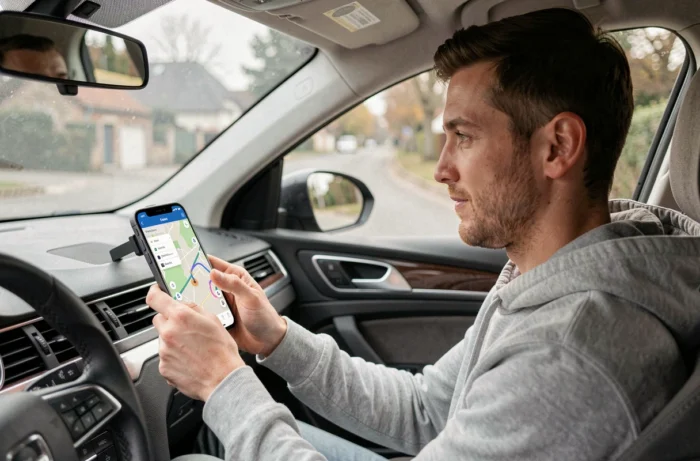
You launch Google Maps before hitting the road, you look for the option to display speed cameras, and nothing shows up. No button, no visible setting, no icon on the map. The problem is not with your phone. It lies in how Google manages legal restrictions according to countries, and a technical nuance that most guides forget to mention.
Why Google Maps Hides Speed Cameras in France
Google Maps does not natively offer the display of fixed speed cameras in France. The app complies with local legislation, which has prohibited alerts that precisely identify the location of fixed or mobile speed cameras since 2012.
What Google displays in other countries (Spain, Brazil, certain U.S. states) is simply not activated in French territory. The option does not appear in the settings because it is filtered server-side, based on your geographical location.
You may have noticed that speed camera icons sometimes appear fleetingly on the map. These are actually community reports (inherited from Google’s acquisition of Waze in 2013), which take the form of “danger zones” or “reported slowdowns.” These are not speed camera alerts in the strict sense. To better understand this mechanism and the available solutions, you can check out Le Blog Auto Mag for speed cameras in a dedicated guide on the subject.
In August 2026, the Court of Justice of the European Union confirmed that each member state can prohibit or limit speed camera alert functions in navigation apps. This decision gives France an even stronger legal basis to request that Google hide certain categories of alerts, including reports of mobile speed cameras or road checks.
Reporting Danger Zones on Google Maps: What Still Works
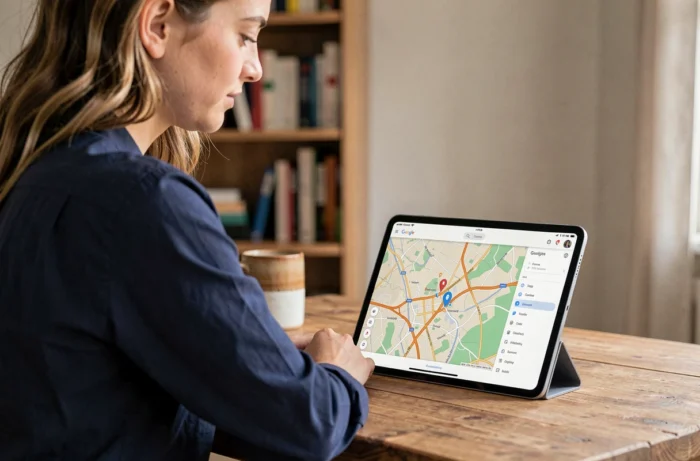
Google Maps includes a real-time incident reporting feature. It allows drivers to report an accident, a traffic jam, a vehicle stopped on the road, or a “slowdown zone.”
It is this last category that serves as a legal workaround. A “slowdown zone” does not indicate a speed camera, but it warns that an event justifies easing off the gas. In practice, many users report these zones near known speed cameras.
To access this feature while navigating:
- Start a route in active navigation mode (not just by checking the map)
- Tap the “+” icon or the reporting bubble that appears at the bottom of the screen
- Select the type of incident to report from the options provided
On Android Auto, this incident reporting feature has recently been expanded, making it usable directly from the vehicle’s screen. On iPhone with CarPlay, the functionality remains more limited.
Third-Party App TomTom AmiGo: Free Alternative on Android
The most shared trick to get real speed camera alerts is to use a third-party app overlaying Google Maps. TomTom AmiGo is the most cited free option for this function.
The principle: you launch TomTom AmiGo in the background, then navigate normally with Google Maps. AmiGo displays sound and visual alerts when you approach a fixed speed camera or a control zone reported by the community.
Limitations to Know Before Installing AmiGo
This method has several concrete constraints:
- It only works properly on Android. On iPhone, iOS prevents two navigation apps from running simultaneously with overlapping sound alerts
- Battery consumption significantly increases with two GPS apps running in parallel
- TomTom AmiGo uses the term “danger zones” and not “speed cameras,” to stay within the legal framework in France
- Community data depends on the number of active users in your area, so reliability varies by region
Legally, apps like “driving assistance” remain allowed as long as they report danger zones without precisely locating a control device. The distinction is subtle, but it is one that Waze, TomTom AmiGo, and Coyote adhere to.
Google Maps Settings to Check if No Alerts Appear
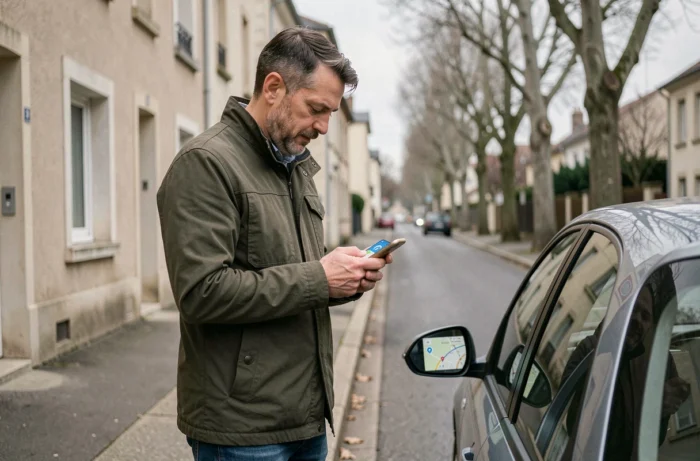
Before looking for a third-party app, check that your Google Maps configuration is not blocking available features. Some settings that are disabled by default prevent any reporting from appearing.
Navigation Settings on Android and iPhone
Open Google Maps, then go to the navigation settings. Look for options related to driving alerts or road incidents. If these options are grayed out or absent, there are two possible causes.
The first: your app is not up to date. Google rolls out reporting features gradually, and an older version may not include them. Update via the Play Store or the App Store.
The second: your Google account is set up on a regional profile that limits certain functions. Check in the general settings of your Google account that your country is correctly set to “France.” An account that remains set to another country after a trip can cause a different display of navigation options.
Active Navigation Mode Required
Community reports only appear when you are following an active route. If you are simply checking the map without starting a journey, no incident icon will display. This is a point that many users overlook.
The CJEU’s decision in August 2026 opens the possibility for other European countries to strengthen their restrictions. Google could therefore further reduce the available reporting features in France in the coming months. Keeping your app updated and monitoring developments remains the best approach to not miss out on alerts that are still accessible.